Editing layers
Gramrekha Mobile allows you to edit vector layers added to the map. While editing, you can:
- add new features;
- delete features;
- edit features.
Switching to Edit mode
There are several ways to start edit mode.
- The first way is Main actions button (the big blue button in the right bottom corner of map screen). Pressing Main actions button opens a menu of most common actions (see Fig. 25).
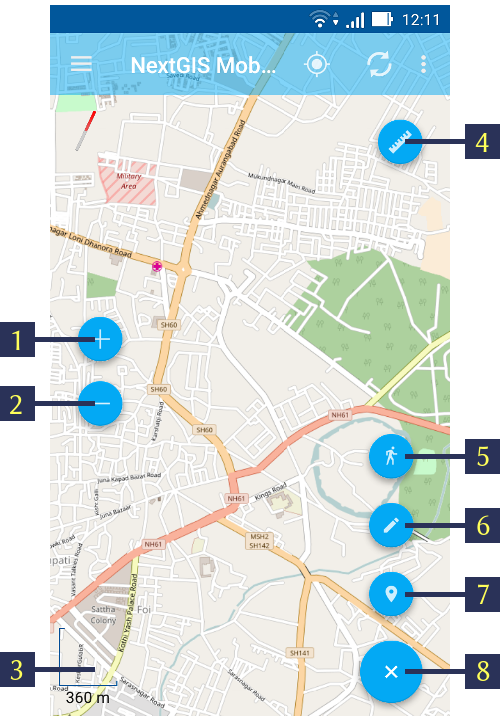
Fig. 25 Common actions menu.
You need to tap the pencil button (item 6 in Fig. 25) to go to edit mode.
- The second way to start editing is to long-press the geometry. This will open an Editing Toolbar at the bottom. There you need to tap the “Edit” button to switch on to edit mode (item 3 in ).
- In the third way, tap on “Layers tree menu” (item 1 in Fig. 2). Then tap on the context menu button next to the layer name (item 5 in Fig. 3). This will pop up the context menu itms as shown in item 6 in Fig. 3. There you need to select “Edit”.
The Editing Toolbar
After switching to edit mode from any of the above, an Editing Toolbar is opened at the bottom of the map screen. (see Fig. 26)

Fig. 26 Editing Toolbar.
Note
This editing toolbar is common for all type of layers, viz, point, line or polygon.
Adding features
If you select the first method To add feature to a vector layer by pressing Main actions button, press a pencil icon (see item 6 in Fig. 25). Tap on a layer name, you’d like to edit in an opened dialog (see Fig. 27).
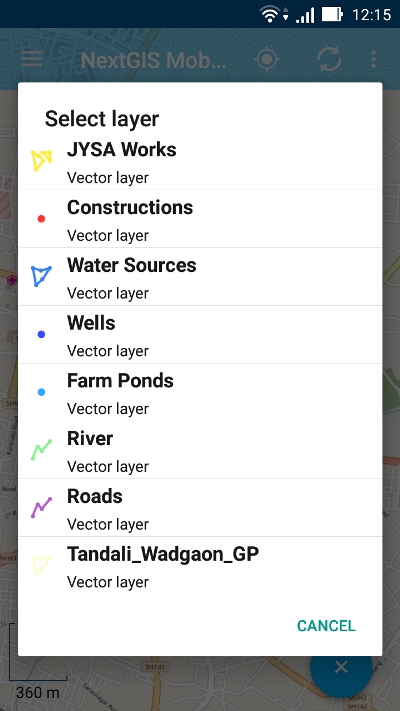
Fig. 27 Select layer dialog.
After you select a layer, map screen switches into Edit mode. It displays an editing toolbar at the bottom of the map screen, as shown in Fig. 26. You can create any type of geometry (points, lines or polygons).
Adding a point
To add a point to an existing layer first select a point vector layer from any of the 3 methods mentioned above. Then tap on the + icon in Bottom toolbar (item 2 in Fig. 26).
New point will appear in the center of the screen highlighted in red, together with arrow icon. You can move this point any where on the map screen by simply holding the circular handle. The red cross hair marker is left behind at the center of the map screen.(see Fig. 28).

Fig. 28 Creating a point.
After new point is added geometrically, you need to set its attributes by tapping on the “floppy” button (item 5 in Fig. 28). Pressing floppy icon will save a new point and open Attributes editing form (see Fig. 29).

Fig. 29 Standard attributes editing form.
Once all the attributes are filled, tap on the Tick icon on the right top corner (item 2 in Fig. 29) to save the attributes. If you tap on the back button on the left top corner (item 1 in Fig. 29), the system will warn you of any unsaved changes. The Camera icon at the bottom (item 3 in Fig. 29) facilitates you to open any photograph from the local storage or take a new photograph of the geographic object just digitized.
Adding a line
To add a line to an existing layer first select a line vector layer from any of the 3 methods mentioned above. Then tap on the + icon in Bottom toolbar (item 2 in Fig. 26).
New line will appear in the center of the screen, with one of its vertices highlighted in red and with arrow icon (see Fig. 30).

Fig. 30 Creating a line.
You can move the vertices any where on the map screen by holding their handle. If you tap on the middle vertex, it will create two extra vertices automatically. Again in their turn you can move & create as many vertices till your purpose is served. In this way you can even get a smooth curve as per the geographic shape.
After new line is added geometrically, you need to set its attributes by tapping on the “floppy” button (item 5 in Fig. 30). Pressing floppy icon will save a new line and open Attributes editing form as shown in Fig. 29 above.
Once all the attributes are filled, tap on the Tick icon on the right top corner (item 2 in Fig. 29) to save the attributes. If you tap on the back button on the left top corner (item 1 in Fig. 29), the system will warn you of any unsaved changes. The Camera icon at the bottom (item 3 in Fig. 29) facilitates you to open any photograph from the local storage or take a new photograph of the geographic object just digitized.
Adding a polygon
To add a line to an existing layer first select a line vector layer from any of the 3 methods mentioned above. Then tap on the + icon in Bottom toolbar (item 2 in Fig. 26).
New polygon will appear in the center of the screen, with one of its vertices highlighted in red and with arrow icon (see Fig. 31).

Fig. 31 Creating a polygon.
Note
The left 2 buttons are for multi polygon editing, an advanced topic not covered here.
After new polygon is added geometrically, you need to set its attributes by tapping on the “floppy” button (item 5 in Fig. 31). Pressing floppy icon will save a new polygon and open Attributes editing form as shown in Fig. 29 above.
Once all the attributes are filled, tap on the Tick icon on the right top corner (item 2 in Fig. 29) to save the attributes. If you tap on the back button on the left top corner (item 1 in Fig. 29), the system will warn you of any unsaved changes. The Camera icon at the bottom (item 3 in Fig. 29) facilitates you to open any photograph from the local storage or take a new photograph of the geographic object just digitized.
Adding current location
To add current location to a vector layer press Main actions button, and then press a pushpin icon (item 7 in Fig. 25). In an opened dialog select a layer you’d like to add current location to (only point geometry layers will be displayed) (see Fig. 32). If there is only one points layer available, it will be selected automatically.

Fig. 32 Select layer dialog.
Current location will be added to selected layer as a new point consisting of 1 point.
Further actions are same as in “Adding a point”.
Note
You can add current location to Point geometry layers only!
Adding line or polygon by tracking
To add line or polygon by tracking to a vector layer press Main actions button, and then press a walking man icon (item 5 in Fig. 25). In an opened dialog select a layer you’d like to add current location to (only line and polygon geometry layers will be displayed) (see Fig. 32).
Find more information about this & further topics at Record tracks to vector layer.
Note
You can add tracks to either Line or Polygon geometry layers.
Editing a geometry
To edit an existing layer first select that vector layer from any of the 3 methods mentioned above and enter the editing mode. The feature will turn its colour to Blue. Then tap on the pencil icon in Bottom toolbar (item 3 in Fig. 26). The feature will turn its colour to Red in edit mode.
Editing a point
To start editing a point it should be first selected by pressing on it. It will change its colour to blue. Then tap on the pencil icon in Bottom toolbar (item 3 in Fig. 26). The selected point feature will be highlighted in red and have an arrow pointing at it.
To change location of a selected point simply pull it or arrow pointing at it to a desired place. Also a point can be moved using buttons from Bottom toolbar - to the center of the screen shown as Red Crosshair marker (item 6 in Fig. 33) or to the current device location (see item 7 in Fig. 33).
You can cancel editing at any point of time, without saving changes, by close editing button. (see item 1 in Fig. 33). The system will warn you about this.
In the end you can have your geofeatures digitized as shown below. See Fig. 33.
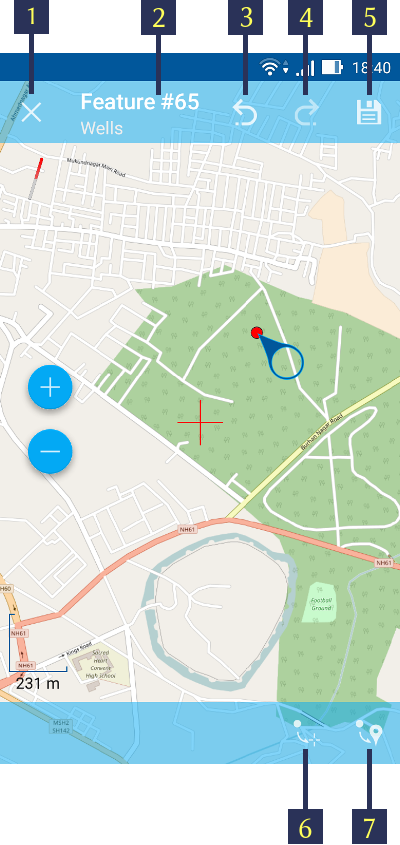
Fig. 33 Editing point
Editing a line
To start editing a line it should be first selected by pressing on it. It will change its colour to blue. Then tap on the pencil icon in Bottom toolbar (item 3 in Fig. 26). The line will change its colour to red and will show all its vertices. Current vertex is highlighted in red and has an arrow pointing at it. The center of line segment between vertices is also indicated. Pressing the center of line segment leads to two new vertex being added to the line.
New vertex can be moved or otherwise edited right after it has been added. Also a vertex can be moved using buttons from Bottom toolbar - to the center of the screen shown as Red Crosshair marker (item 7 in Fig. 34) or to the current device location (see item 8 in Fig. 34).
You can delete the unrequired vertex by highlighting it and tapping delete vertex (see item 6 in Fig. 34)
In this way you can even get a smooth curve as per the geographic shape.
In the end you can have your geofeatures digitized as shown below. See Fig. 34.

Fig. 34 Editing line
Note
If only one vertex remains in a line this line is deleted automatically.
Editing a polygon
To start editing a polygon it should be first selected by pressing on it. It will change its colour to blue. Then tap on the pencil icon in Bottom toolbar (item 3 in Fig. 26). The polygon will change its colour to red and will show all its vertices. Current vertex is highlighted in red and has an arrow pointing at it. The center of line segment between vertices is also indicated. Pressing the center of line segment leads to two new vertex being added to the line.
New vertex can be moved or otherwise edited right after it has been added. Also a vertex can be moved using buttons from Bottom toolbar - to the center of the screen shown as Red Crosshair marker (item 7 in Fig. 35) or to the current device location (see item 8 in Fig. 35).
You can delete the unrequired vertex by highlighting it and tapping delete vertex (see item 6 in Fig. 35)
In the end you can have your geofeatures digitized as shown below. See Fig. 35.

Fig. 35 Editing polygon
Editing attributes
After layer is in edit mode as explained before, an editing toolbar, as shown in Fig. 26, appears in the bottom of the map screen. You need to tap on “Attribute info” (see item 5 in Fig. 26). This will open Attribute info panel as shown in Fig. 36 below.

Fig. 36 Attribute info
Note
When you tap on to view attributes (see item 4 in Fig. 36),
- For Point layer, system shows that point’s current location in Latitude/Longitude by default.
- For Line layer, system shows the length of that line features in meters by default.
- For Polygon layer, system shows the perimeter of that polygon feature in meters & the area in square meters by default.
Editing attributes using standard form
You need to tap on “Set attributes” button (see item 6 in Fig. 36). This opens a standard attribute editing form as shown in Fig. 29. Once all the attributes are filled, tap on the Tick icon on the right top corner (item 2 in Fig. 29) to save the attributes. If you tap on the back button on the left top corner (item 1 in Fig. 29), the system will warn you of any unsaved changes. The Camera icon at the bottom (item 3 in Fig. 29) facilitates you to open any photograph from the local storage or take a new photograph of the geographic object under intervention.
The Attributes toolbar
The Attributes toolbar is common for all the geometric features, viz. point, line or polygon, as shown below in Fig. 37

Fig. 37 Attributes Toolbar.
Note
This Attribute Toolbar is common for all type of layers, viz, point, line or polygon
The attribute table
Tap on “Layers tree menu” (item 1 in Fig. 2). Then tap on the context menu button next to the layer name (item 5 in Fig. 3). This will pop up the context menu itms as shown in item 6 in Fig. 3. There you need to select “Attributes”. Attribute table for that layer opens as shown in Fig. 38 below.

Fig. 38 Attributes Table.
Here you can tap on any record (row) in the table. Attribute table toolbar appears at the bottom of the screen. This facilitates a few actions for that record with corresponding ID as shown below in Fig. 39.

Fig. 39 Attributes table toolbar.
You can open the standard attribute form for editing as shown in Fig. 16 by selecting “Open attribute editing form” (see item 8 in Fig. 39)
Warning
If you tap on “Delete” button (see item 7 in Fig. 39), the system deletes the feature momentarily although providing undo menu, live for 5 seconds. If undo action is not selected, the feature gets deleted permanently.
Editing attributes of a custom form
If the layer includes customized attributes form (layer created with a ngfp file), instead of standard one (see Fig. 29), the following form as shown below in Fig. 40 will be used in Edit attributes dialog.

Fig. 40 Custom attributes form.
Customized attributes form may contain the following entry fields:
- Text;
- Space;
- Text field;
- List; Tandem list;
- Checkbox;
- Radio button;
- Date Picker;
- Photo.
“Text” field is used to provide additional information about created geometry. “Text field” can be used to add text or integers, depending on the field type (see item 4 in Fig. 40).
“List” and “Tandem list” fields are used to store and select values included in custom lists, for example, “List” - region/republic/territory, “Tandem list” - district/area in region/republic/territory (see item 5 in Fig. 40).
“Radio button” field allows to select one element from a list of mutually exclusive options (see item 7 in Fig. 40).
“Date picker” field allows to select date, time or both of them (see item 6 in Fig. 40).
After filling in all required attributes press Tick button (item 2 in Fig. 40) to save edits.
Pressing buttons 1 or 5 will return you to Map screen. The system will warn you about any unsaved changes.